
Download the scanner & get past the security warnings
Picture-by-picture help. Each picture has a yellow box and a red numbered arrow showing where to click.
📱 The scan runs on a Windows PC or a Mac, not on a phone or tablet. Open this page on the computer you want checked, or pick it below to read the steps.
🛡️ Why the warning? Computer Advisor is a new app from a small company (Dizkaver LLC), and it isn't code-signed yet. Windows, macOS and browsers warn about any program that few people have downloaded so far. The warning isn't a virus alert. The scanner only reads hardware info after you press Enter, and it installs nothing. Only allow it if you downloaded it from mycomputeradvisor.com.
🪟 Windows PC: 3 steps to run the free scan
Step 1 — Download
Step 2 — If your browser warns about the download
If you use Google Chrome
Chrome may hold the file back and say “Suspicious download blocked”. Here's how to keep it:
Step 1: Click the download icon at the top right (or press Ctrl + J), then click the file.
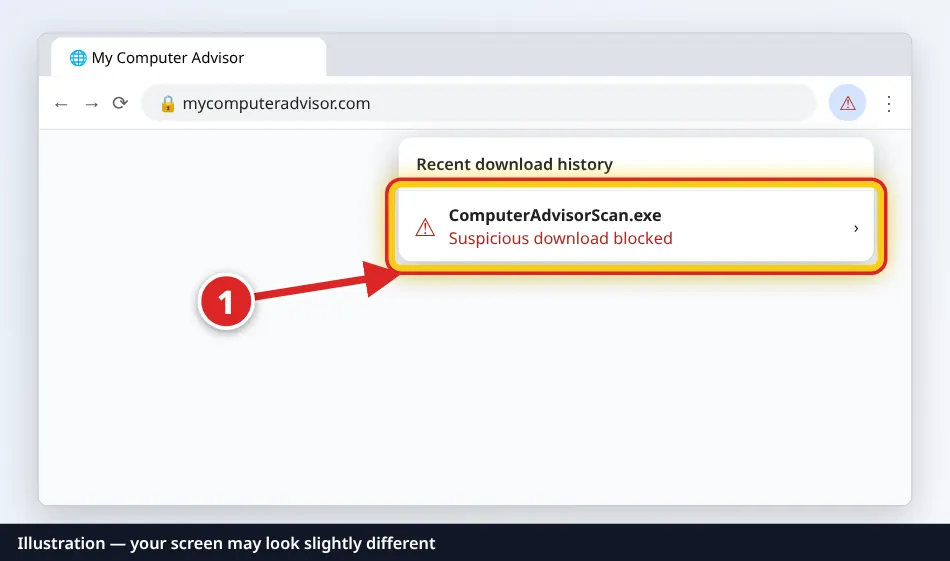
Illustration — your screen may look slightly different. Step 2: Click Download suspicious file. (Older Chrome says Keep.) Don't click the blue “Delete from history” button.
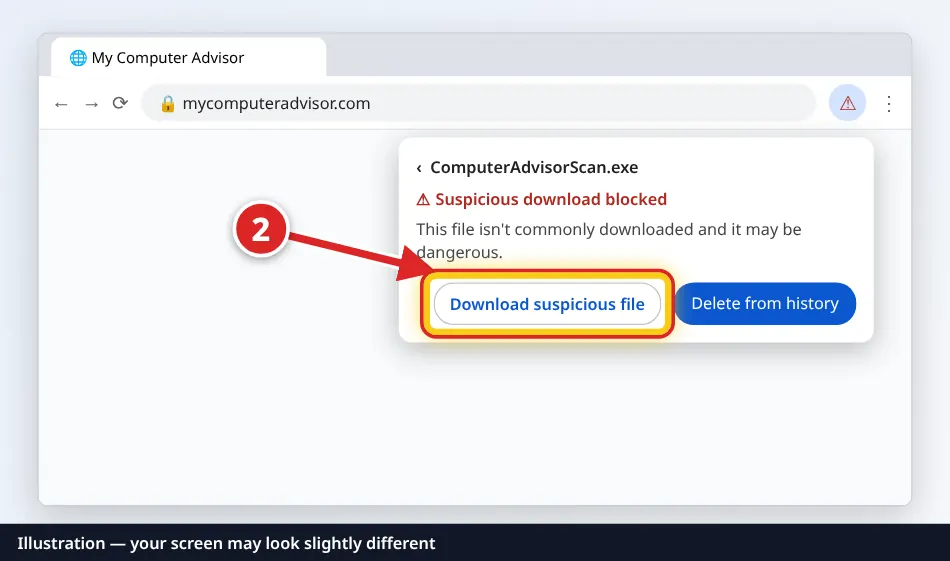
Illustration — your screen may look slightly different. Step 3: Click the file in the download list to open it.
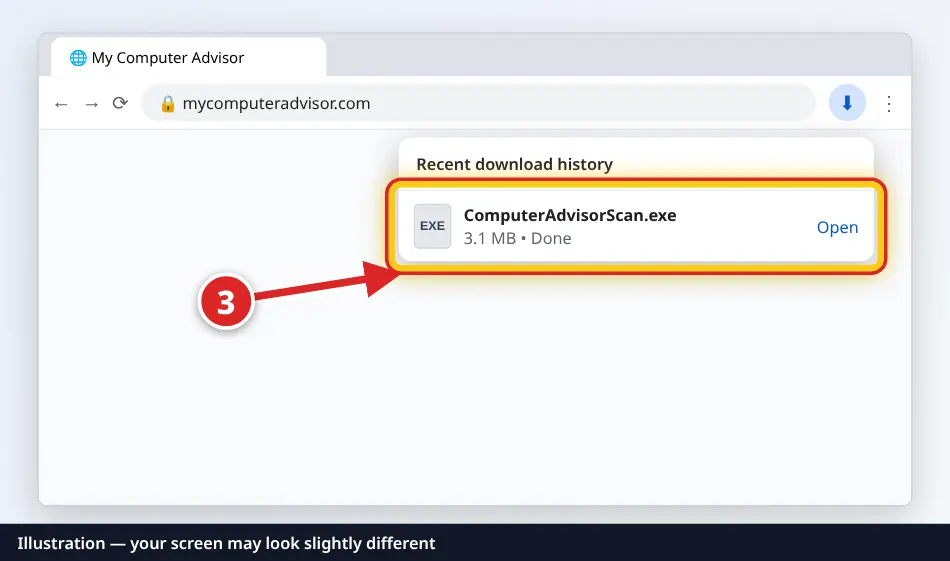
Illustration — your screen may look slightly different.
If you use Microsoft Edge
Edge may say the file “isn't commonly downloaded”.
Step 1: Open Downloads (Ctrl + J), point at the file and click the … (More actions) button.
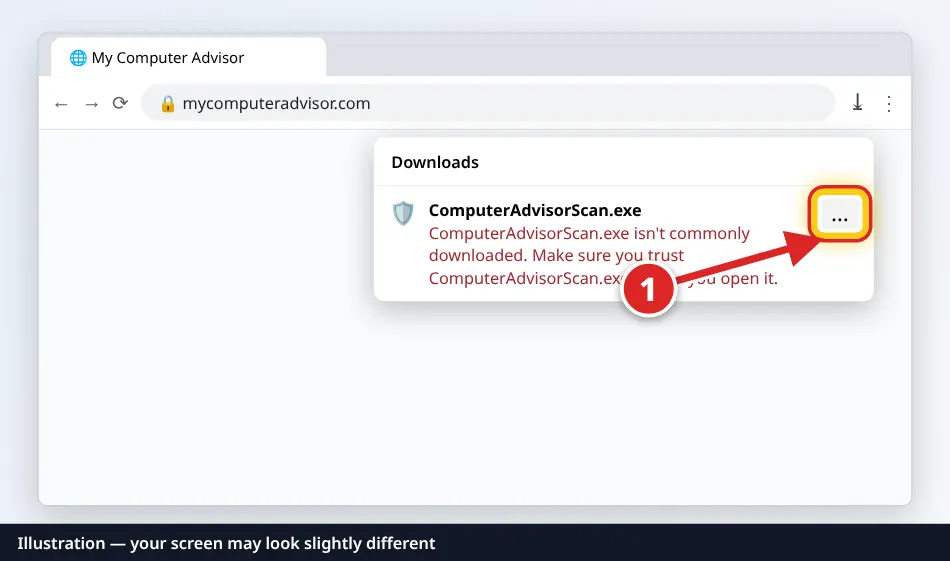
Illustration — your screen may look slightly different. Step 2: Click Keep.
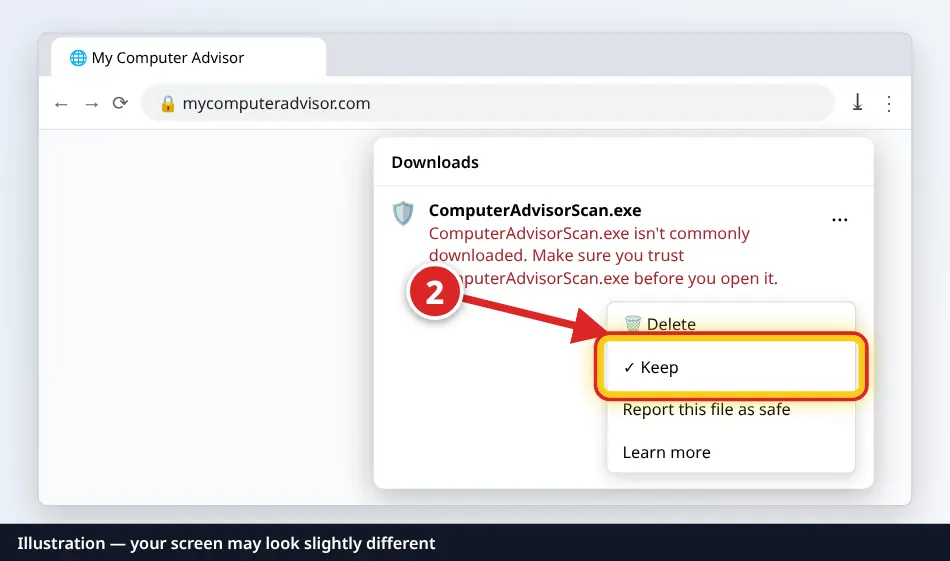
Illustration — your screen may look slightly different. Step 3: Click Show more, then Keep anyway. Then open the file from the Downloads list.
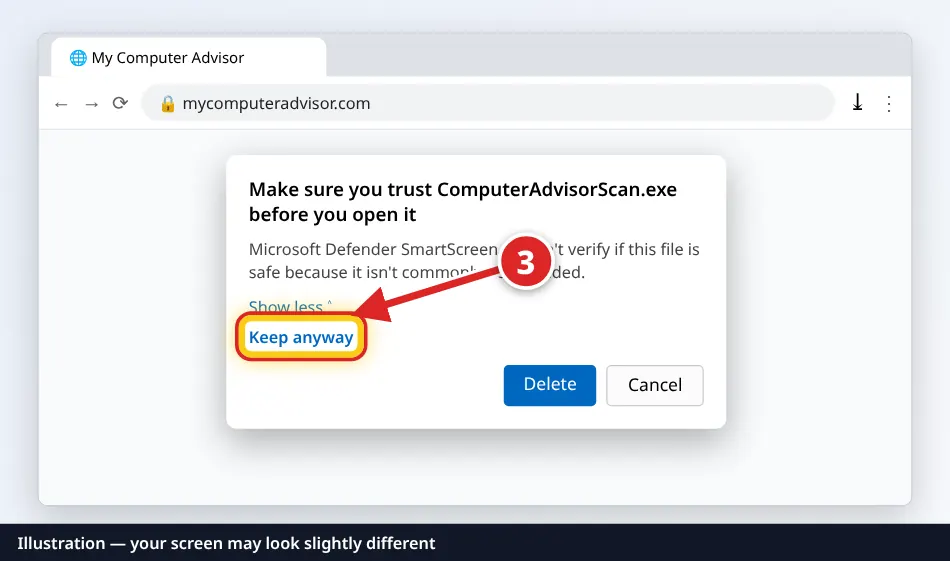
Illustration — your screen may look slightly different.
Step 3 — Open it: “Windows protected your PC”
A blue window may appear the first time. That's Microsoft Defender SmartScreen.
Step 1: Click More info.
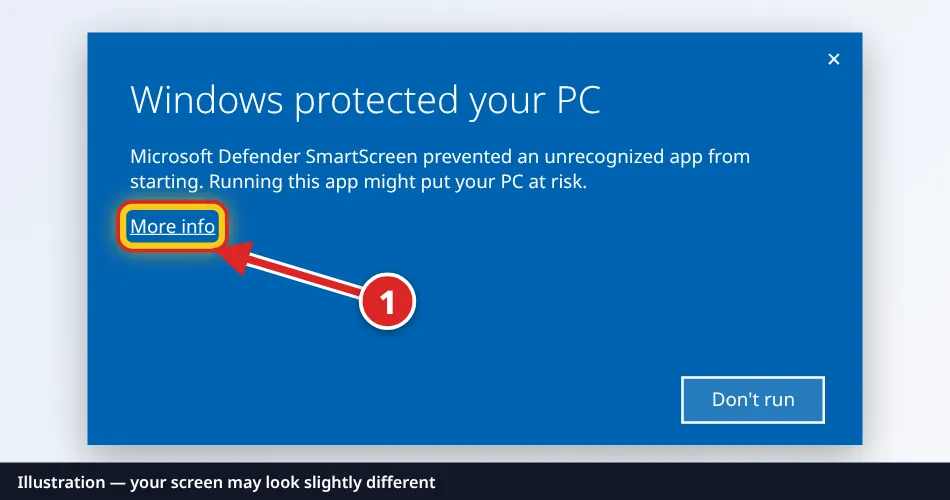
Illustration — your screen may look slightly different. Step 2: Check it says ComputerAdvisorScan.exe, then click Run anyway.
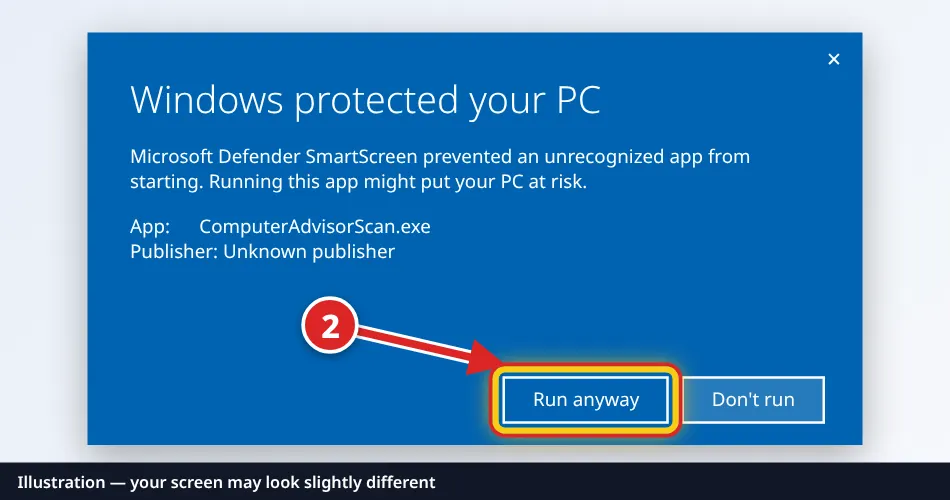
Illustration — your screen may look slightly different. Step 3: A black window opens. Press Enter to allow the one-time check. Your results open in your browser.
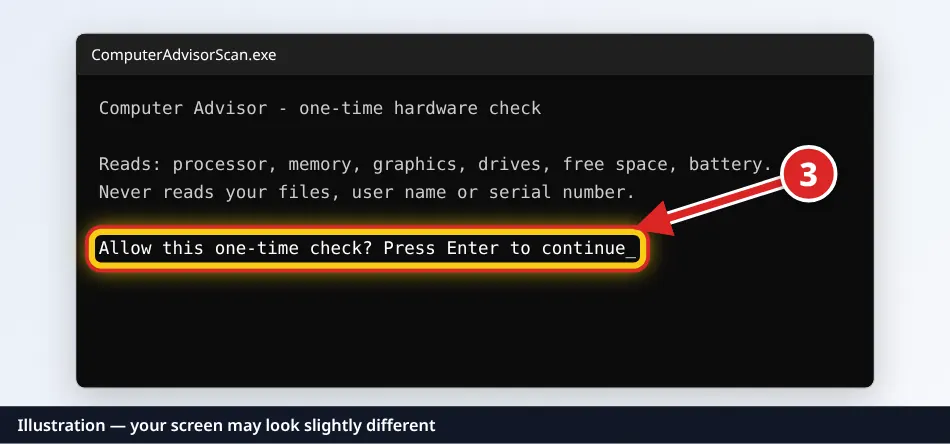
Illustration — your screen may look slightly different.
🍎 Mac (beta): 3 steps to run the free scan
Easiest way: Terminal (recommended, about 1 minute)
This way needs no download and never shows the “Not Opened” warning.
Step 1: Copy this line:
curl -fsSL https://mycomputeradvisor.com/download/mac-scan.sh | bashStep 2: Press ⌘ Command + Space, type Terminal, press Return.
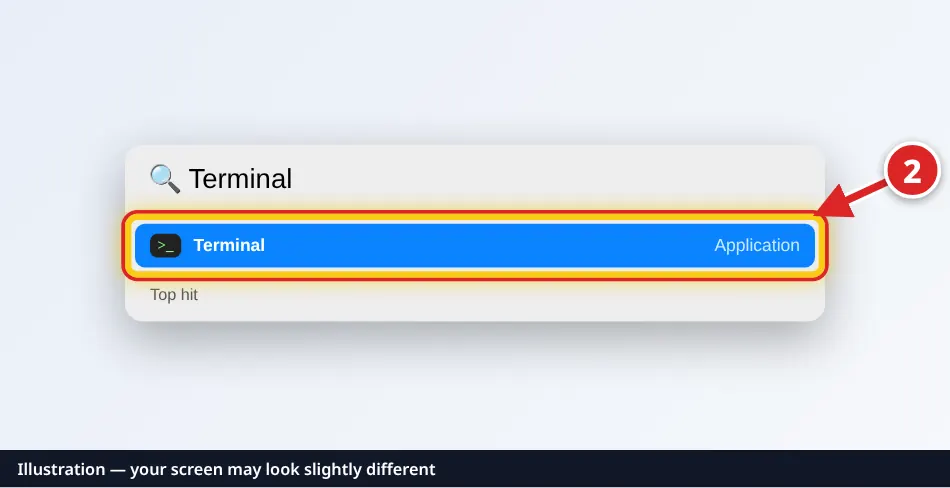
Illustration — your screen may look slightly different. Step 3: Click inside the Terminal window, press ⌘ Command + V to paste, then press Return. Press Return again when it asks to allow the check.
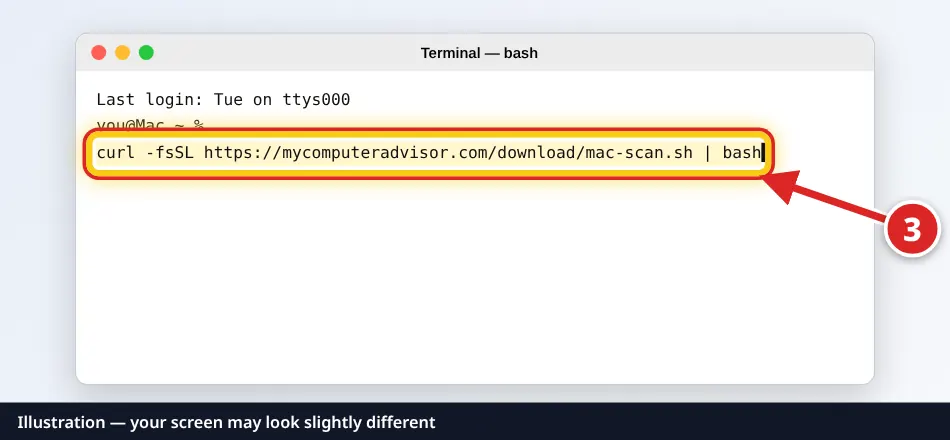
Illustration — your screen may look slightly different.
Or download the file
In Safari:
Step 1: Click the Downloads arrow at the top right of Safari. Safari usually unzips it for you. Double-click the file, or click the magnifier to show it in Finder.
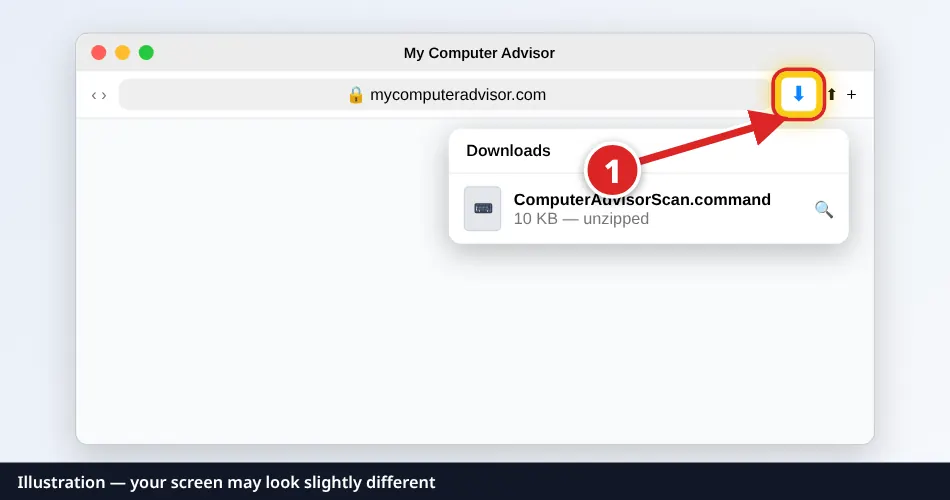
Illustration — your screen may look slightly different.
Then (macOS 15 Sequoia and newer):
Step 1: In your Downloads folder, double-click ComputerAdvisorScan.command. (If you only see the .zip, double-click it first.)
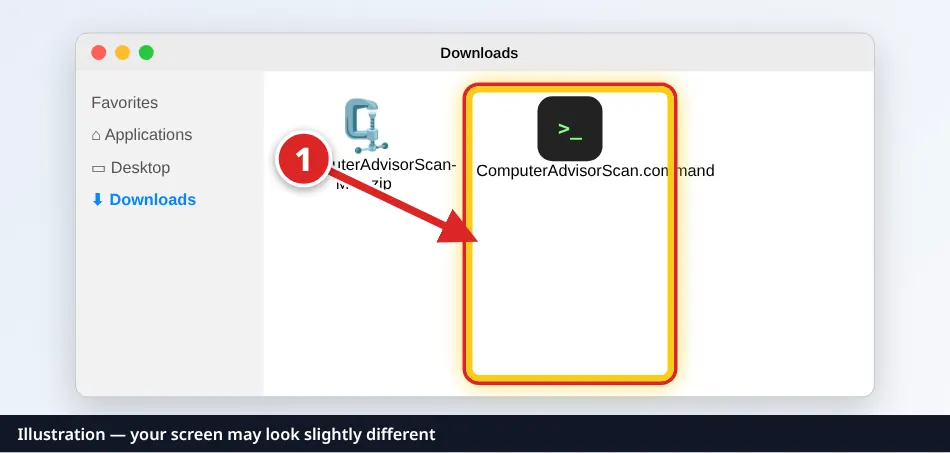
Illustration — your screen may look slightly different. Step 2: macOS says “Not Opened”. Click Done (not Move to Trash).
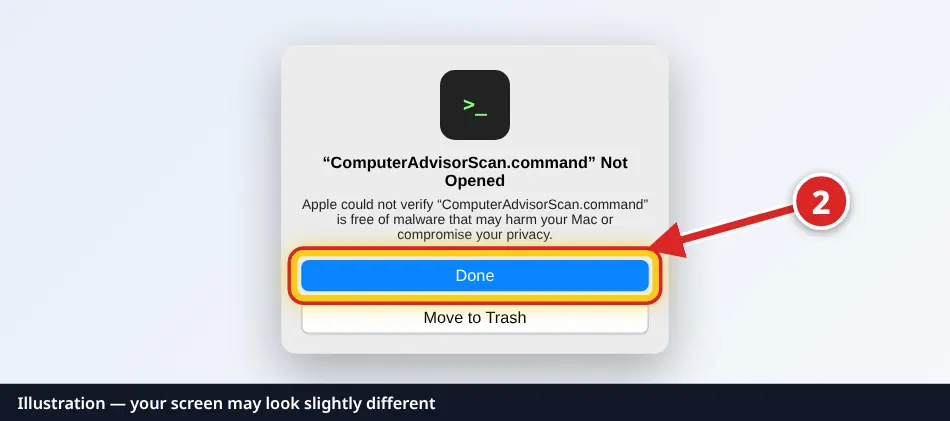
Illustration — your screen may look slightly different. Step 3: Click the Apple menu › System Settings › Privacy & Security. Scroll down to Security and click Open Anyway. Do this within about an hour.
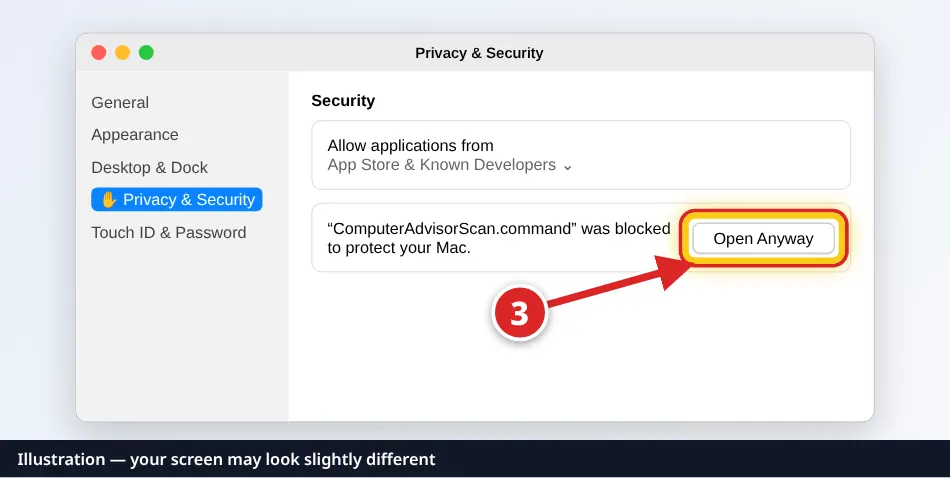
Illustration — your screen may look slightly different. Step 4: macOS asks again. Click Open Anyway.
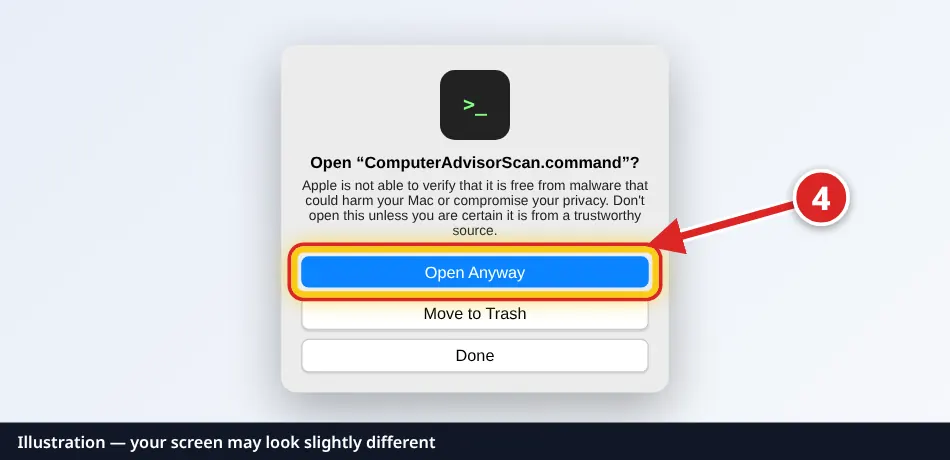
Illustration — your screen may look slightly different. Step 5: Enter your Mac password (or use Touch ID) and click OK. This only confirms it to macOS. The scanner never asks for it. A Terminal window opens with the check.
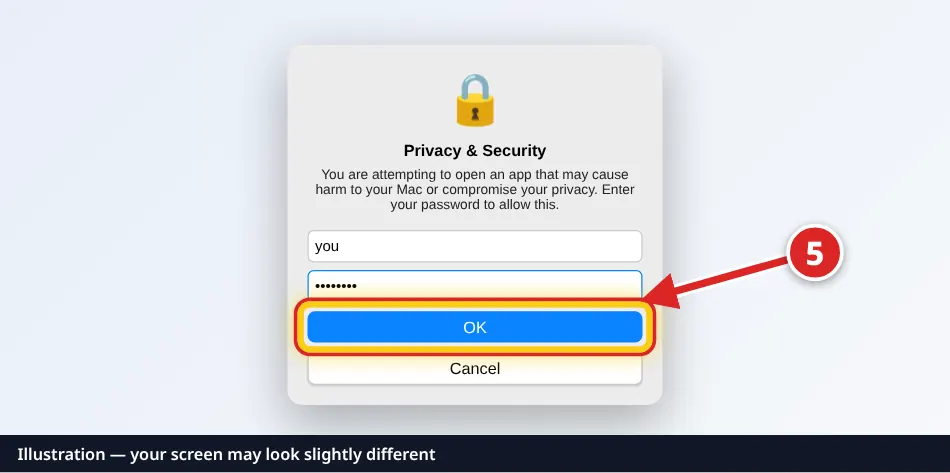
Illustration — your screen may look slightly different.
Older macOS (14 Sonoma and earlier):
Step 1: Hold Control and click ComputerAdvisorScan.command (or right-click it), then click Open.
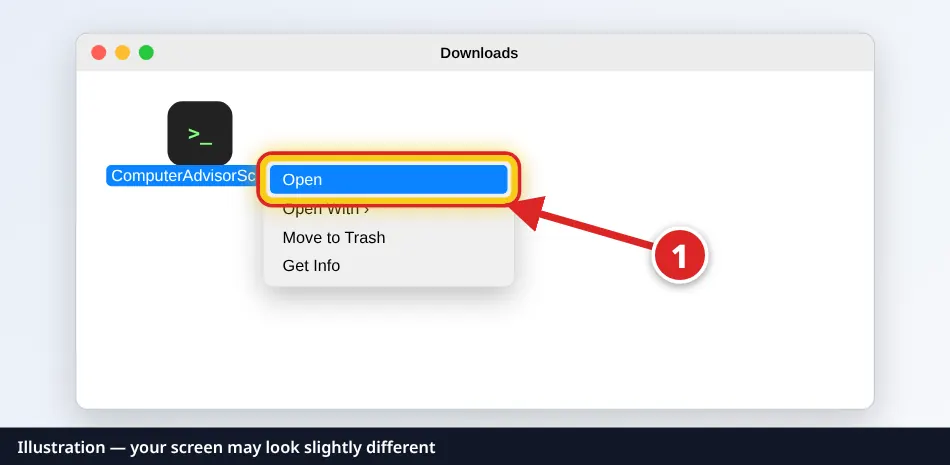
Illustration — your screen may look slightly different. Step 2: Click Open in the warning.
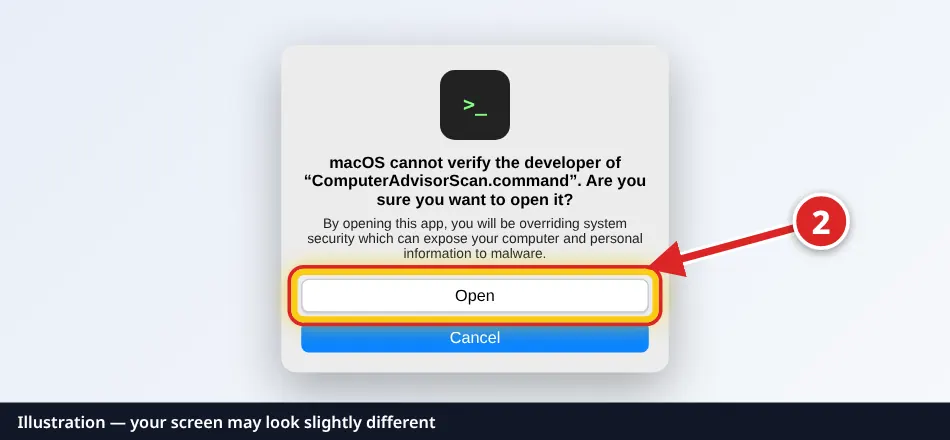
Illustration — your screen may look slightly different.
Needs macOS 10.15 Catalina or newer. Stuck? Use the Terminal way above, or answer a few quick questions instead.
💻 Chromebook: no download needed
There's no scanner for Chromebooks — ChromeOS doesn't let websites run programs like this, so there's nothing to download and no security warning to get past.
Instead, answer a few quick questions (about 2 minutes). We'll give you the same plain-English plan.
Chromebook — answer quick questions
Checking a Windows PC or Mac instead? Open this page on that computer, or pick it from the buttons at the top.