
Free basic assessment · No account needed
Slow computer? Repair or upgrade — find out what's wrong.
Free scan in 20 seconds. Plain-English plan.
Scan my computer automatically
No typing specs. The scanner reads your processor, memory, graphics, drives and free space, then opens your results right here.
⬇ Download for Free
🖼️ Security warning after downloading? See the picture guide — exactly where to click (Windows · Mac · Chrome · Edge · Chromebook)
On a Mac? Mac (beta)
The Mac scanner is new and hasn't been tested on many Macs yet. If anything looks wrong, use the questions below instead — and please tell us in the feedback form.
Easiest way (recommended, about 1 minute)
- Click Copy under the black box below.
- Open Terminal: press ⌘ Command + Space, type Terminal, press Return. A window with text opens.
- Click inside that window, press ⌘ Command + V to paste, then press Return.
- You'll see “Computer Advisor - one-time Mac check”. Press Return to allow it.
- Wait about 20 seconds while it shows steps 1 to 7. Press Return again and your results open in your web browser.
curl -fsSL https://mycomputeradvisor.com/download/mac-scan.sh | bash🖼️ Show me with pictures
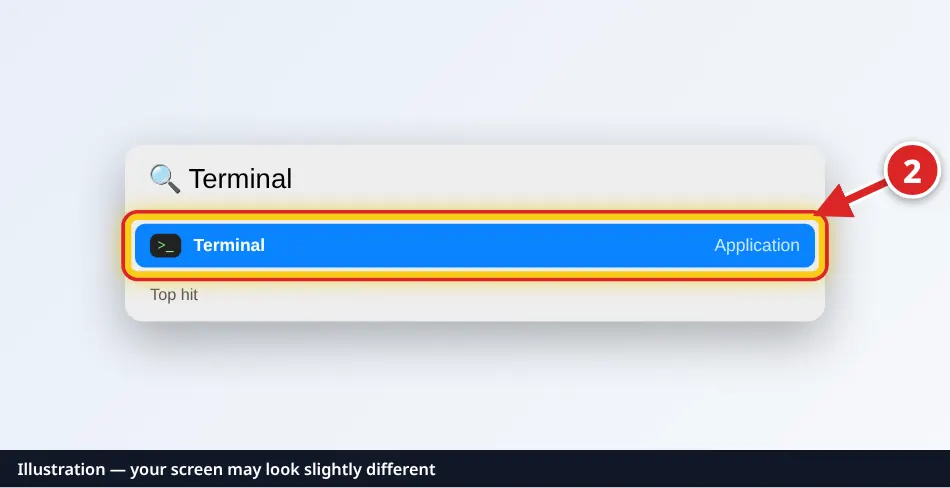
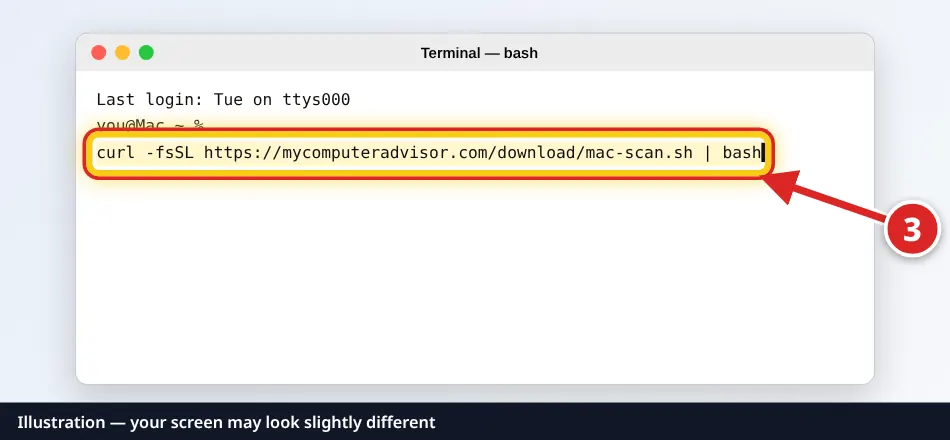
Illustration — your screen may look slightly different.
Or use the downloaded file
- Click Download for Mac above, or download the Mac scanner (zip, 10 KB). Safari may unzip it for you. Then double-click ComputerAdvisorScan.command in Downloads.
- The first time, macOS says “Apple could not verify…” or “Not Opened” (the app is new and not yet signed by Apple). Click Done.
- Click the Apple menu (top-left corner) › System Settings › Privacy & Security, scroll down to Security, and click Open Anyway next to ComputerAdvisorScan.command. Confirm with your password or Touch ID. (The password only confirms this to macOS. The scanner never asks for it and installs nothing.)
- Double-click the file again and click Open. A Terminal window opens with the check. If you don't see it, click Terminal in the Dock.
🖼️ Picture guide for the Mac file, step by step (Safari download, “Not Opened”, Open Anyway, older macOS).
Nothing happens at all? Use the easiest way above — it never needs Open Anyway. Needs macOS 10.15 Catalina or newer.
💬 Have a suggestion or question? Send us a message
Full report with upgrade recommendations
You're not on a Windows PC or a Mac right now — open this page on the computer you want checked, or use the quick check / questions below.
- 1Download & openComputerAdvisorScan exe (Windows) or the Mac scanner (beta)
- 2Press Enterto allow the one-time check
- 3Results open hereanswer 3 quick questions
🔒 Reads hardware and health info only — never your files, user name or serial number. Installs nothing, uploads nothing.
Seeing a blue “Windows protected your PC” window?
If Windows shows a blue “Windows protected your PC” (SmartScreen) warning, or your browser pauses the download: click More info, then Run anyway. In Edge or Chrome downloads you may need to choose Keep first.
This is normal: it appears only because the app is new and not yet code-signed. It only reads your hardware after you allow it (press Enter when it asks “Allow this one-time check?”).
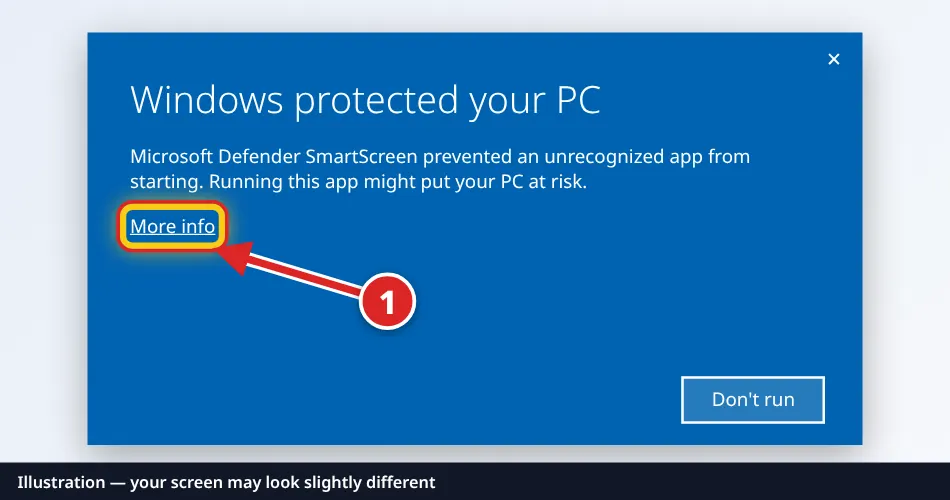
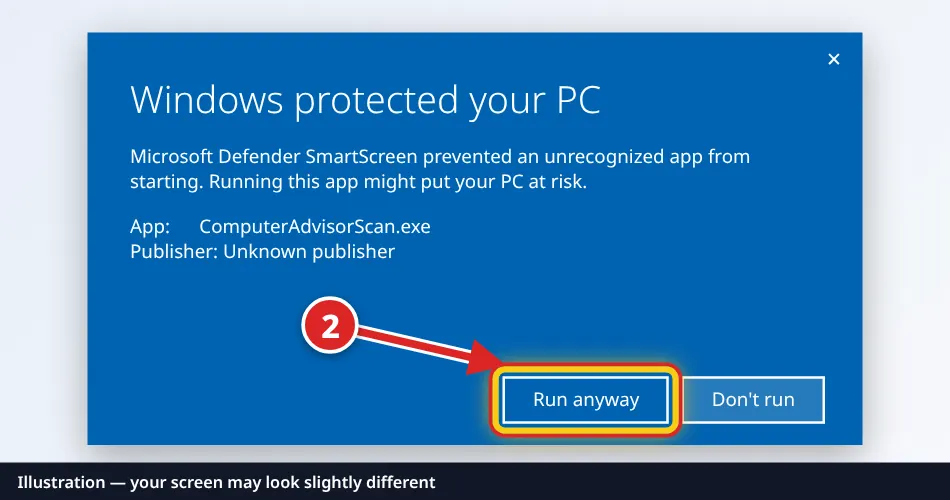
Illustration — your screen may look slightly different. Full picture guide, including Chrome and Edge download warnings
Not on Windows, or prefer not to download?
Your browser can tell us a little (roughly) — nothing is installed.
Or answer questions instead — what would you like to do?
How it works
A plain-English plan for what's slowing your computer down, what's worth fixing, and whether replacing it is a better use of your money — including “keep it, no purchase needed” when that's the right answer.
1. Pick your goals
Upgrade, health check, software problems, speed, repair-or-replace, selling, or a computer that won't start.
2. Scan or answer
Run the free scanner (Windows, or Mac in beta — about 20 seconds), or answer short questions — “I don't know” is always fine.
3. Get a clear plan
Safety first, then separate ratings, a ranked best-value plan, store search links and sources — and what we couldn't check.
Honest note: the website itself can't see your hardware. Only the optional scanner reads it, and only after you say yes. Without the scanner, advice is based on your answers. Works for a computer that won't start, too — just use your phone and the questions.
Try a demo
Fictional example computers (labeled DEMO) — each leads to a different recommendation.
Pricing
No payment is collected on this site yet. Safety guidance is always free.